
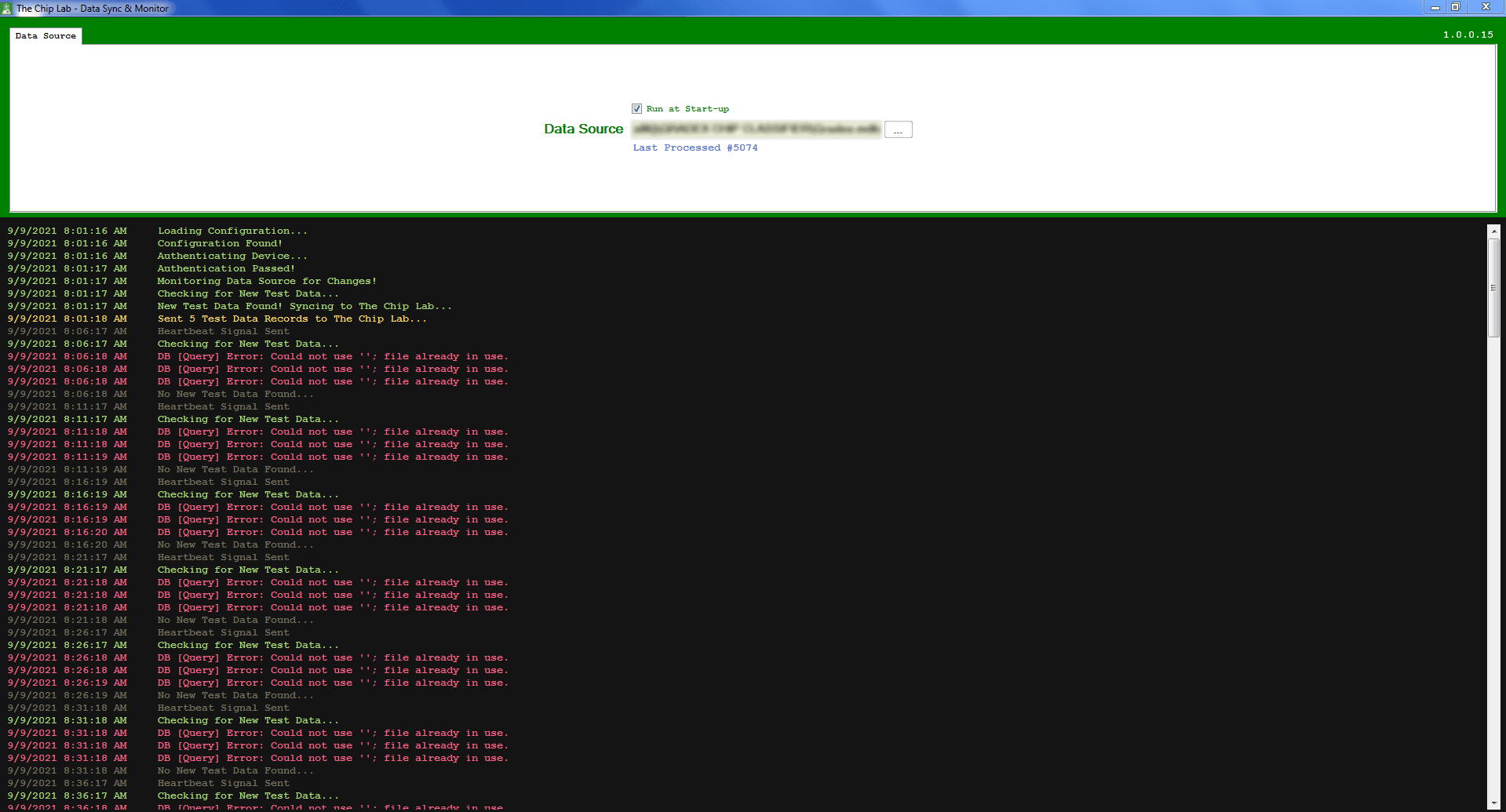
If this error occurs, it is most likely a permissions issue caused by the database's containing folder lacking proper write permissions for all users.
- To prevent this error, the very first thing you need to do is just make sure that all users who have opened the database have read, write, and create rights for the folder in which the database is located.
- In the unlikely scenario that another user has opened up the database exclusively and the data client tries to open it, this error can also occur. Chances are also that user opened the database in exclusive mode or made some modifications such as editing modules, which put the database in exclusive mode. So you need to change it to shared mode.
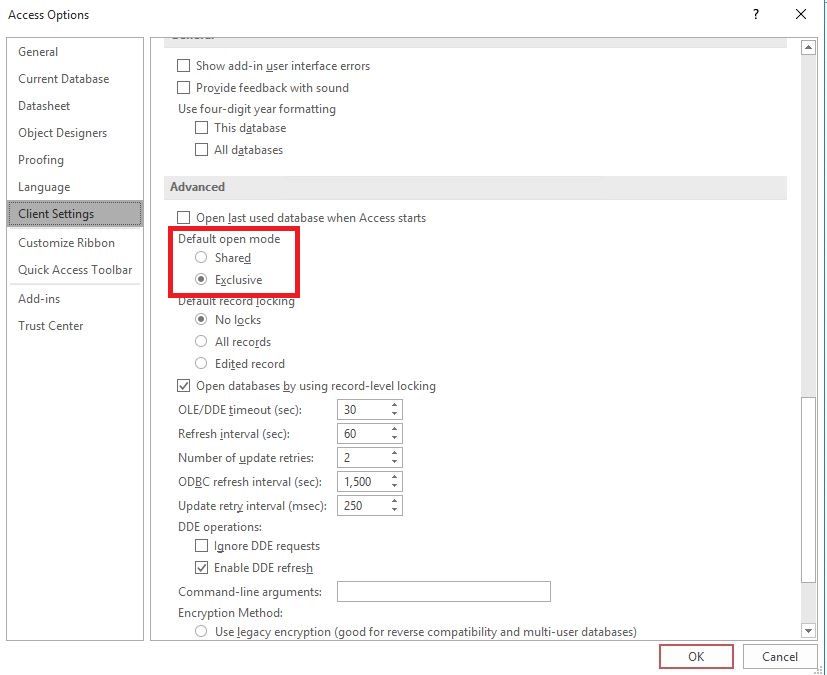
Changing the access database to "shared" mode.
- Be sure to close out of the DataSync client as well as any classifier program (e.g. Gradex / Rader software) before doing any of these steps
- Navigate to the database
- Open the database in MS Access
- Once open, click on the File menu
- Choose Options
- Choose Client Settings menu in the Access Options dialog
- Choose the option like the picture below:
- Click OK to save your change
- Restart the DataSync Client
- Restart your classifier program (e.g. Gradex / Rader software)